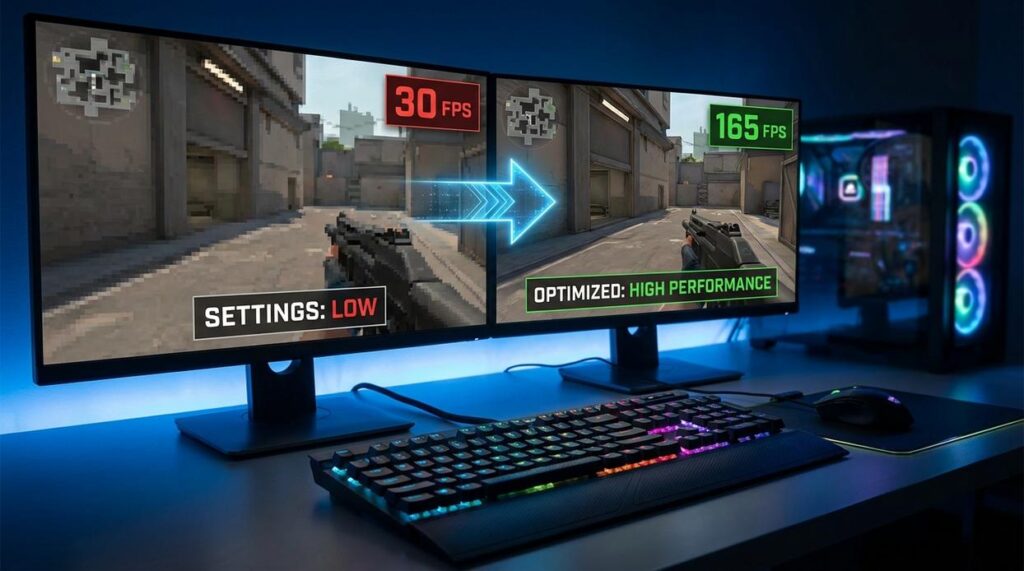
If your game is stuttering, freezing, or dropping frames at the worst possible moments, you’re not alone. Players everywhere are searching for reliable ways to fix game performance issues without sacrificing visuals or competitive edge. Whether you’re grinding ranked matches, competing in multiplayer arenas, or exploring the latest releases, performance problems can ruin timing, strategy, and overall enjoyment.
This guide is built specifically for gamers who want clear, practical solutions—not vague advice. We break down the core causes of lag, frame drops, and instability, then walk you through proven optimization strategies that actually work across different systems and competitive environments.
Our insights are based on extensive testing across modern titles, deep analysis of in-game performance mechanics, and hands-on experience with competitive play settings. By the end of this article, you’ll know exactly what’s slowing your game down and how to correct it for smoother, more consistent performance.
From Stutter to Smooth: Your Ultimate Game Performance Guide
Lag happens. But tweaks won’t save you. Instead, we diagnose bottlenecks at the hardware, software, and network layers—separately. First, define FPS (frames per second): how many images GPU renders each second. Then input lag: the delay between your action and on-screen response. Many guides stop there. We don’t.
While others suggest lowering graphics, we profile frame-time variance (micro-stutter’s culprit) using engine metrics. Next, we stress-test CPU thread allocation—crucial in multiplayer arenas. Finally, we optimize driver queues and router QoS settings (yes, it matters).
Follow this system to fix game performance issues.
Diagnosing the Bottleneck: Is It Your PC or the Game?
Before you start dragging sliders like you’re defusing a bomb in Counter-Strike, pause. The real win comes from knowing what’s actually slowing you down. When you identify the bottleneck first, you save time, avoid unnecessary upgrades, and make changes that truly fix game performance issues.
Use tools like MSI Afterburner or built-in game overlays to monitor:
- FPS (Frames Per Second): How smoothly your game runs
- CPU usage: The percentage of processor power being used
- GPU usage: How hard your graphics card is working
- VRAM: Video memory dedicated to textures and visual data
Understanding the Numbers
If your CPU is hitting 100% while your GPU sits idle, you’re CPU-bound. This often happens in strategy or simulation games where AI and calculations dominate. On the flip side, if your GPU is maxed out, especially in visually intense shooters, you’re GPU-bound.
If VRAM is full, your texture settings are too high (yes, even if “Ultra” looks tempting).
Why This Matters
Diagnosing correctly means:
- Smarter setting adjustments
- Fewer random tweaks
- Better, more stable performance gains
Instead of guessing, you’re making targeted fixes—and that’s how you turn stutter into smooth gameplay.
In-Game Settings: The Low-Hanging Fruit for FPS Gains

I still remember booting up a ranked match, dropping from 144 FPS to 70 the moment a smoke grenade popped. I blamed my GPU. Turns out, it was my settings.
If you want quick wins, focus on The Big Four: Shadow Quality, Texture Quality, Anti-Aliasing, and Resolution. These control most of your frame rate swing.
Shadows vs. Frames
Dynamic shadows (real-time lighting that changes with movement) are performance hogs. High or Ultra settings can tank FPS by 15–30% depending on the engine (NVIDIA performance guides frequently highlight shadows as a top GPU load driver). For competitive play, set shadows to Low or Medium. You’ll keep critical visual cues without melting frames. (Your kill/death ratio won’t care about ultra-realistic tree shade.)
Anti-Aliasing Explained
Anti-aliasing (AA) smooths jagged edges.
- FXAA: Fast, blurry, low cost.
- MSAA: Cleaner, but GPU-intensive.
- TAA: Balanced, common in modern titles.
I usually run TAA or low FXAA for shooters. MSAA looks great—but costs frames you might need in a clutch.
Resolution Scaling
Resolution scaling renders the game below native resolution, then upscales it. Dropping to 90% can boost FPS dramatically with minimal clarity loss. Pro tip: adjust in 5% increments until you spot blur.
V-Sync, G-Sync, FreeSync
V-Sync removes screen tearing but adds input lag. G-Sync and FreeSync sync monitor refresh rate dynamically (VESA standards), reducing tearing without as much delay. Disable V-Sync in competitive modes.
If you’re serious about competitive smoothness, review this full guide on how to optimize pc settings for maximum fps 2026.
Sometimes, you don’t need new hardware to fix game performance issues. You just need smarter sliders.
Beyond the Game Menu: Driver Updates and System Tweaks
You can tweak in-game settings for hours—but if your system foundation is shaky, you’re building on sand. Let’s start with the Graphics Driver Imperative. “Game Ready” drivers are GPU software updates optimized for new releases. Some players argue updates are risky (“if it ain’t broke, don’t fix it”). Fair. Occasionally, a fresh driver introduces bugs. But outdated drivers more often cause crashes, shader compilation stutter, and poor optimization for modern APIs like DirectX 12. A clean install using Display Driver Uninstaller (DDU)—a tool that removes leftover driver files—prevents conflicts that linger between versions. Pro tip: disconnect from the internet during reinstall to stop Windows from auto-installing old drivers.
Next: Optimizing Windows for Gaming. Yes, Windows is smarter than it used to be. And yes, some say manual tweaks are outdated advice from 2012 Reddit threads. Still, background processes eat CPU cycles. Switch your power plan to High Performance, enable Game Mode, and disable startup apps you don’t need. It’s not glamorous—but neither is losing 15 FPS because your PC is syncing cloud files mid-match.
Then there’s your GPU control panel:
- Low Latency Mode reduces input delay by limiting pre-rendered frames.
- Shader Cache stores compiled shaders to reduce stutter.
Some argue in-game settings should be enough. Ideally, yes. But driver-level overrides can stabilize inconsistent titles.
Finally, overlays. Discord, Steam, GeForce Experience—they’re convenient, but they hook into your game’s rendering pipeline. Disable them if you’re chasing smoother frames. Small adjustments compound—and that’s often how you fix game performance issues.
Network Lag vs. Hardware Lag: Conquering Latency
Low FPS (frames per second, how many images your GPU renders each second) is a hardware problem. High ping (the time data takes to reach the game server, measured in milliseconds) is a network problem. You can have buttery-smooth 144 FPS, but at 200ms ping, every fight feels like you’re dueling in slow motion (and losing).
Quick Network Fixes
- Use wired Ethernet instead of Wi-Fi for stability.
- Restart your router to refresh routing paths.
Packet loss—when data packets never reach the server—causes teleporting and missed hit registration. Many guides ignore this metric. Check it first to fix game performance issues fast.
Your arena isn’t capped by hardware; it’s capped by friction. Most guides tell you to lower settings and hope. We go further. You now have a complete toolkit to systematically dismantle any performance issue, ensuring your hardware delivers the smooth gameplay you paid for. The core problem was never power, but optimization.
To fix game performance issues, you targeted:
- Background process conflicts
- Driver-level latency spikes
- In-game render bottlenecks
That dual-layer approach—system plus settings—is the edge competitors ignore (because it’s harder to explain). The solution works because it removes hidden constraints, not just visible lag. Now win more.
Level Up Your Competitive Edge
You came here to get a clearer understanding of what’s driving today’s competitive gaming scene—from smarter mechanics to sharper multiplayer arena tactics and better optimization strategies. Now you have the insights to adapt, compete, and stay ahead of the meta.
The reality is simple: falling behind on strategy updates or ignoring performance tweaks costs you wins. In high-stakes matches and Zero1 competitive circuits, even minor frame drops or unrefined tactics can be the difference between victory and defeat. If you want consistent results, you can’t afford to guess—you need proven approaches that fix game performance issues and sharpen your gameplay edge.
Here’s your next move: put these strategies into practice today. Audit your current setup, refine your mechanics, and apply optimization tweaks before your next session. If you’re serious about climbing rankings and dominating your arena, tap into the most trusted competitive insights and optimization guides available—used by players who refuse to settle for average.
Don’t let preventable mistakes hold you back. Upgrade your strategy, optimize your performance, and step into your next match ready to win.